Contact page and selected navigation styles
Transcript
00:00
- [Man] One more page to add, which is the contact page. For now we're not gonna add the form. We're just gonna add some text and we'll come back a little bit later and add this in. We just want a sense that Aria get her approval first of all. So let's just add this in. So, contact page. Same technique as what we did before. We're gonna add on our index.html. We're gonna take our header, we're gonna move it into our contact, going to get rid of that, and same thing with our footer.
00:26
We're gonna take this, we're gonna copy and paste this in. There we go. And the same thing is what we want from before, we're gonna add a section tag in here, and this is gonna have a div with the class of contact. Or maybe not contact. Maybe form, maybe. Something like that. Eventually, this section is gonna have a class of contact itself.
00:47
Or even contact form, for instance. And then, in here, we're gonna have a h1-- h1 with what we're gonna put, which is, "Contact me and I'll get back to you within one business day." There we go. So, maybe I wanna kinda put something in here that isn't just, like, related to a form which doesn't exist. Maybe, "Contact me on my email and I'll get-- I'll try to get back to you within one business day." So, if you look at it right now-- Again, if I go to contact, what we should see is this is all in one line.
01:18
Again, it's trying to squeeze it all into one grid column. I want it to be three by six, so it's one, two, three, fourth across and span six. So, this is what we're gonna next. We're gonna say this is contact and then, for the form, we want to go across that. So, last thing we're gonna do for now is we're gonna do section for contact. We go to div.form, and this is going to the grid column. We're gonna start at four. One, two, three, four.
01:46
And then span across six. So, what we should see, just very quick leaves and then it looks like this. "Get me on my email and I'll try to get back to you within one business day." Now, there's one extra thing that I want to add in before we actually send this over to the client, which is how do we tell the difference between these. Well, what we can do here is same thing as what we have with our hover state, but I wanna select one thing per page.
02:11
On the portfolio page, I want want this to be highlighted. On the about page, I want this to be highlighted. And on this, I want it to be highlighted as well. So, what we're gonna do just to finish this off is add the selected state. So, selected state isn't a thing that exists. A hover state does. We can hover things in the browser. What I'm gonna do in my index.html is scroll up to my add navigation and I'm gonna add on my first link a class of selected.
02:42
So, this is the one that I always want selected. But on about.htlm I'm gonna go up and not have it here, but have it on my about. My class selected. And on contact, unsurprisingly, I'm gonna do it on the last link. Class is selected. Now, selected doesn't mean anything. It could be called "active." It could be called the thing that we want right now. All as one word, it doesn't really matter.
03:10
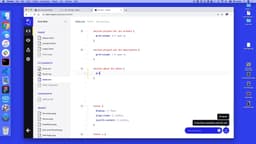
So, in the moment, nothing changes. But what we can do in our style sheet is say if any of these navigations have an "a" with a class of selected, it should be pink. So, I'm gonna keep this together. I'm gonna scroll up to where we got a.hover. I want this to be the hover state, but also comma if a.selected. So, notice the difference here. One is the browser state, a:hover, so any link in the state of being hovered.
03:43
And then the last one is just a class. It's a label that we've decided to put on this. But what this will do now is, we go up to the page-- This one's highlighted all the time. This one will highlight when we hover. If I click about, that one's hovered as well. This portfolio's done as well. So we've now got all three pages set up, just like we wanted to in Figma.
SuperHi FM
Want some ambient music in the background? Play our radio station!